

What to Expect From EMC in 2025!
January 30, 2025
A Peek at the A.I. Commander
May 6, 2025


What's Hot At EMC?!
The first two months of the year have already passed in a flash! We received fantastic feedback on our first newsletter, and now we're back with the March edition! Erik "Hot Sauce" Swahn is here with an update from the engineering department in "What's Hot with Hot Sauce Vol. 4." Our engineering team has been hard at work and is excited to share some of the projects they’ve been developing. This edition will also include a product spotlight, showcasing some of the amazing accessories that can be added to the AEVIT™ 2.0 System.


What's Hot With Hot Sauce Vol. 4
Known for his love of spicy food, Erik "Hot Sauce" Swahn brings you the latest from the engineering department.
Introducing – The New Evaluator Console.
As we work on developing the next generation of the AEVIT System, we’ve cooked up something special for our trusted Certified Driver Rehabilitation Specialists – the next generation of the Evaluator Console.
This streamlined console supersedes the existing evaluator console. This console is designed to function with both existing and future AEVIT Systems.
We are currently testing the prototype of this new console, and will have more information in the coming months.
For Sale Now – GenX Display
As you may have already seen, we are now selling our GenX Display. This direct plug and play upgrade enhances your current AEVIT System. Check out the modern graphics offered by this new display!
Looking Towards The Future
We’ve had many new product developments here at Electronic Mobility Controls. As we begin to turn towards spring, work on the next generation of AEVIT continues, with much to look forward too! Time will tell what will be unveiled.

3-D model of the new Evaluator Console

AEVIT 2.0 GenX Display's splash, home, HVAC, auxiliaries, and calibration screens.

Silhouette of components from the next generation of the AEVIT System

Product Spotlight - Magnabox
No longer be tethered by cables with a Magnabox!
The EMC Magnabox is a wireless controller that allows for the activation of any function. The Magnabox has three designs: Leashed Single Button, Contained Single Button, or Contained Two Button. The wireless design allows the button to be handheld, secured to a wheelchair, or placed anywhere in the vehicle. The Magnabox is a great activation point for wheelchair ramp extension, AEVIT System Wake-Up, Digitone, turn signals and more…
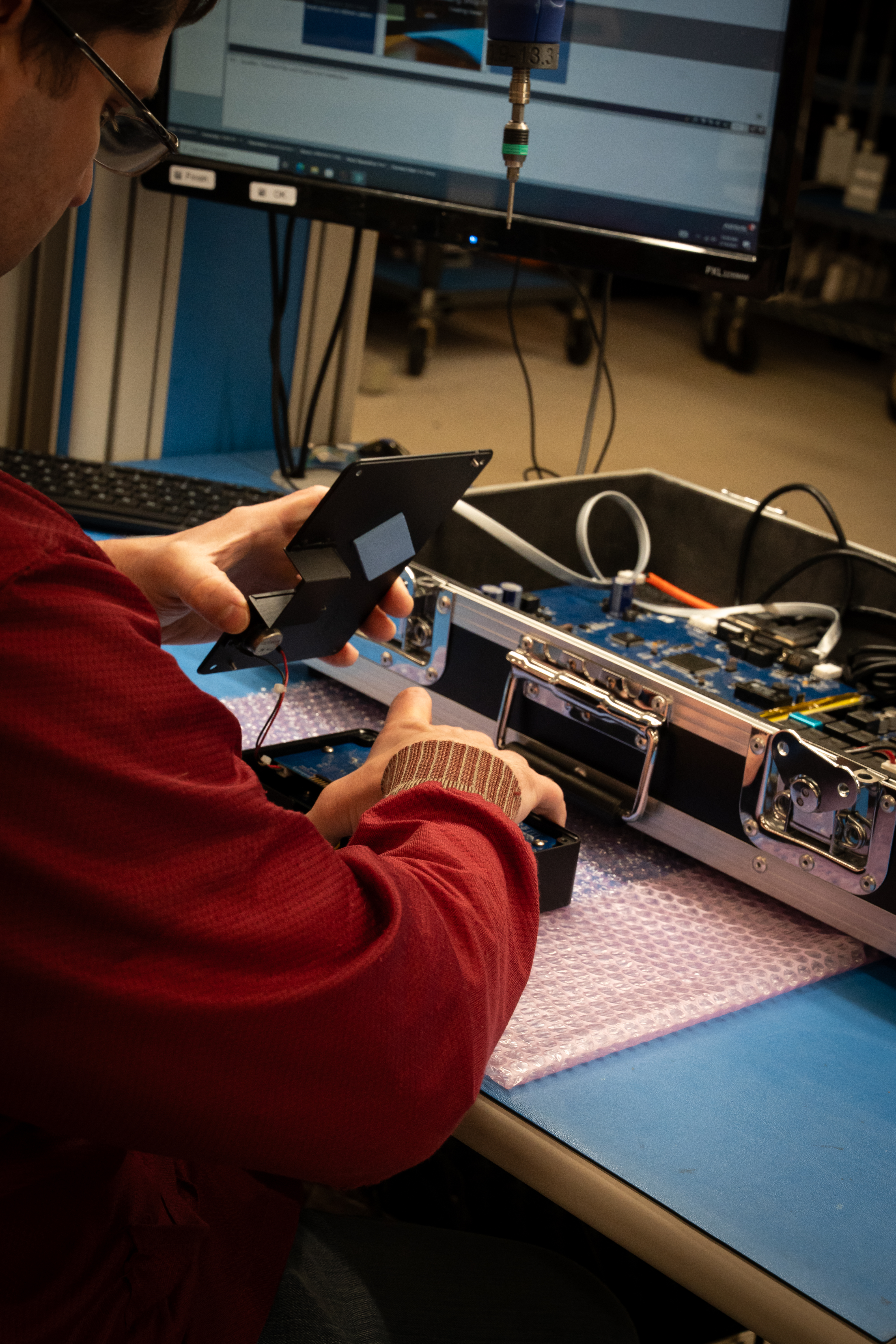
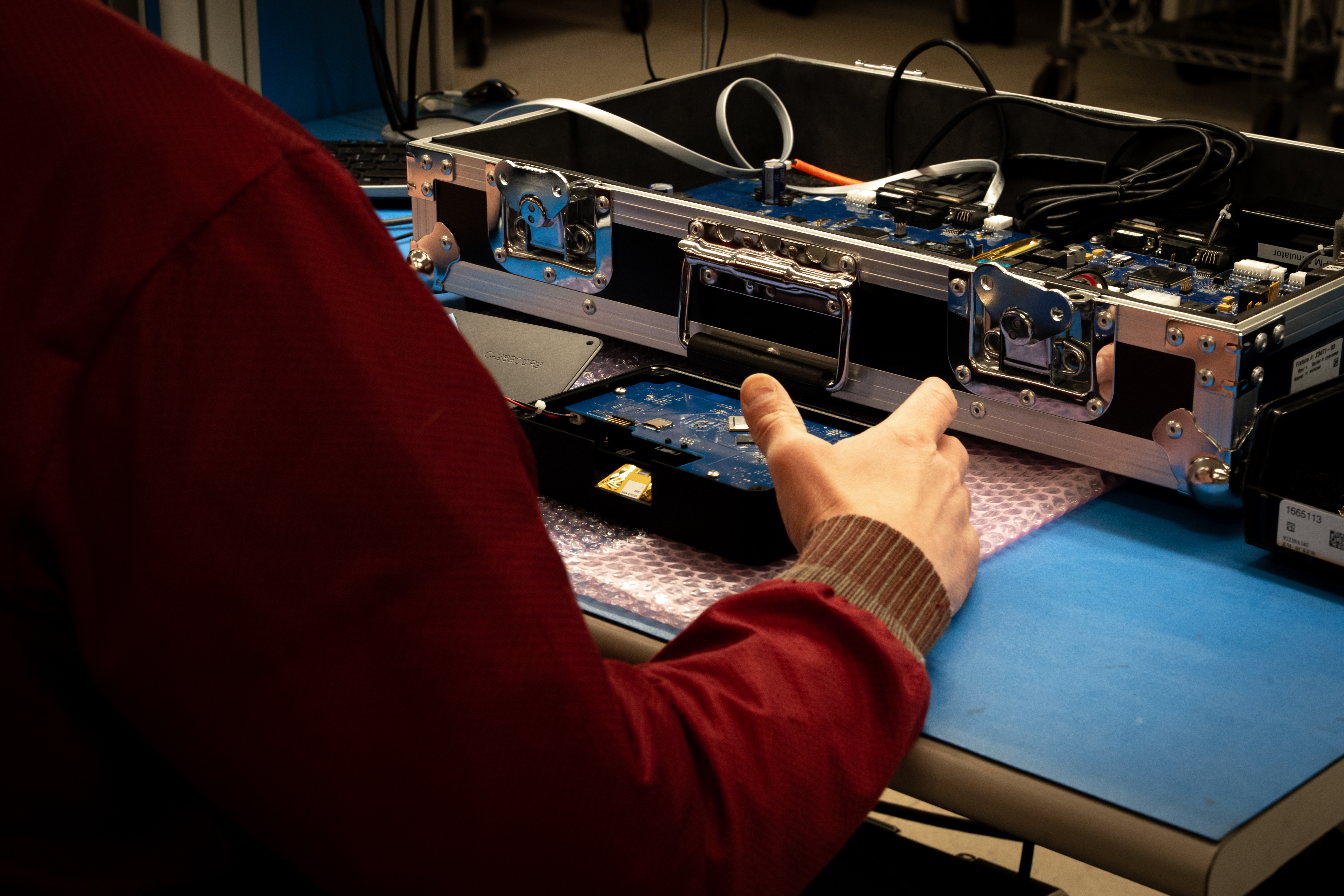
Building the AEVIT 2.0 GenX Display
With the release of the AEVIT 2.0 GenX Display in January, we want to give a behind the scenes look at the building process of the display.


What Additional Functions Can I Control Through AEVIT?
Option A offers all essential electrical functions that are needed to operate a vehicle. Within Option A, there are four (4) programmable auxiliaries. These AUX controls do not have to be the same controls offered in the Option A "package," like mirrors. You can actually control functions like push to talk, sunroof/ moonroof, sliding door, rear window, heated seats, rear wiper... etc. Additionally, with a programmed Push to Talk, a driver would have access to all the functions that the vehicle's Push to Talk can access.
When programming the Display's Auxiliary Options, be sure to discuss which functions would be best to program.
Disabling the OBD
To assure the AEVIT System remains in good working order, EMC recommends that routine maintenance be performed at predetermined intervals based on hours of use. This maintenance will be performed by visiting any EMC dealer. The Dealer will inspect and/or adjust key components of the AEVIT System and also send the Operational Log to EMC to determine if additional service is required.
The On Board Diagnostic (OBD) Module that was installed in conjunction with your AEVIT System doesn't require any maintenance, but the AEVIT OBD setting will need to be changed if a technician needs to hook up a scan tool or any other device that requires connection to the vehicle's computer through the OBD connector.
OBD Disable & Enable Procedure
Please observe the following steps when disabling the AEVIT OBD:
- Wake up the AEVIT System.
- Turn on the vehicle's ignition. Do NOT start the engine.
- On the display, the icon has an engine and "START".
- Do NOT press the green "S" icon.
- Press the AUX Menu found on the right side of the screen.
- Press the OBD icon.
- Press the ACCEPT button on the warning message.
- This message warns that changing the setting will affect driving characteristics.
- In the User Status screen, use the up and down arrows on the screen's left to navigate to the "AEVIT OBD Disable" line.
- Once "AEVIT OBD Disable" is highlighted. Press the (+) button to toggle the setting to ON.
- Connect scanner to the OBD port.
- For older installations, the OEM OBD connector may need to be unplugged, as older vehicles typically do not have a splitter.
- Once the scan is complete, replace the connector if needed, and power down AEVIT.
- When AEVIT System is rebooted, the setting will revert back to OFF.
*NOTE: This is not intended to be used while driving the vehicle. When this setting is ON, any AEVIT readings or commanding messages are disabled. This means that the system will not read RPM, speed, throttle pedal, etc and will not control CAN based functions.
Don't Forget About Our Resources Tab!
Our website is an amazing resource to learn about everything EMC and AEVIT. If you are looking to update your website with newer images or videos, look no further! The resources tab, found in the top navigation bar, is where you can find all of our downloadable content. This includes all of our brochures, flyers, general forms, product photos, and videos. If we are missing any material you believe would be a great asset to have, please let us know!


